A Windows desktop application for Scout leaders, commissioners and group administrators to quickly check the compliance status of their volunteers. It connects to the Scouts membership system and generates reports on DBS checks, training, and activity permits - all in one place.
Download the latest version here
Click the link above and download ScoutsReporter.zip
Extract the zip — inside is a single ScoutsReporter.exe file
Put it anywhere you like (Desktop, Documents, etc.) and double-click to run
No additional software needed — everything is bundled into the one file. The app will let you know when a new version is available.
What does it do?
Scouts Reporter pulls data from the same system that powers the Scouts membership website and presents it in a simple, searchable table format. Instead of clicking through dozens of individual profiles online, you can see everyone's status at a glance.
Dashboard
The Dashboard tab gives you a high-level compliance overview without having to read through full reports. It shows three headline tiles:
DBS / Disclosures — percentage of volunteers with a valid DBS check
Safety & Safeguarding — percentage up to date on mandatory Safety and Safeguarding training
First Response — percentage with current First Response training
Each tile is colour-coded green, amber or red depending on the compliance level (green at 90%+, amber at 70%+, red below 70%).
If you have access to multiple units, the dashboard breaks down compliance by unit, with expandable sections showing team-level details, flag summaries, and lists of members who need attention.
Reports
The app produces three detailed reports:
| Report | What is Shows |
| DBS / Disclosures | Whether each volunteer has a valid DBS check, when it expires, and any outstanding onboarding actions |
| Training | Completion status of mandatory and optional training modules (First Response, Safeguarding, Safety, etc.) with expiry warnings |
| Permits | Activity permits held by each volunteer, their status and expiry dates |
Each report colour-codes members so you can immediately spot who needs attention:
Green (OK) - everything is in order
Yellow (Expiring Soon / In Progress) - action needed soon
Red (Expired / Missing / Action Needed) - urgent attention required
Blue (Not in System / No Permits) - informational
Getting started
What you need
A Windows 10 or Windows 11 computer
An internet connection
A Scout membership account with access to at least one unit (the same login you use for the Scout membership website)
Installing
Download the latest release and extract the zip
Place ScoutsReporter.exe anywhere on your computer - your Desktop, Documents folder, or wherever is convenient
Double-click ScoutsReporter.exe to run it
There is nothing else to install. If Windows SmartScreen shows a warning the first time you run it, click "More info" then "Run anyway" - this is normal for new applications.
First-time setup
No configuration is needed. The app will ask you to log in, and that's it.
How to use it
Logging in
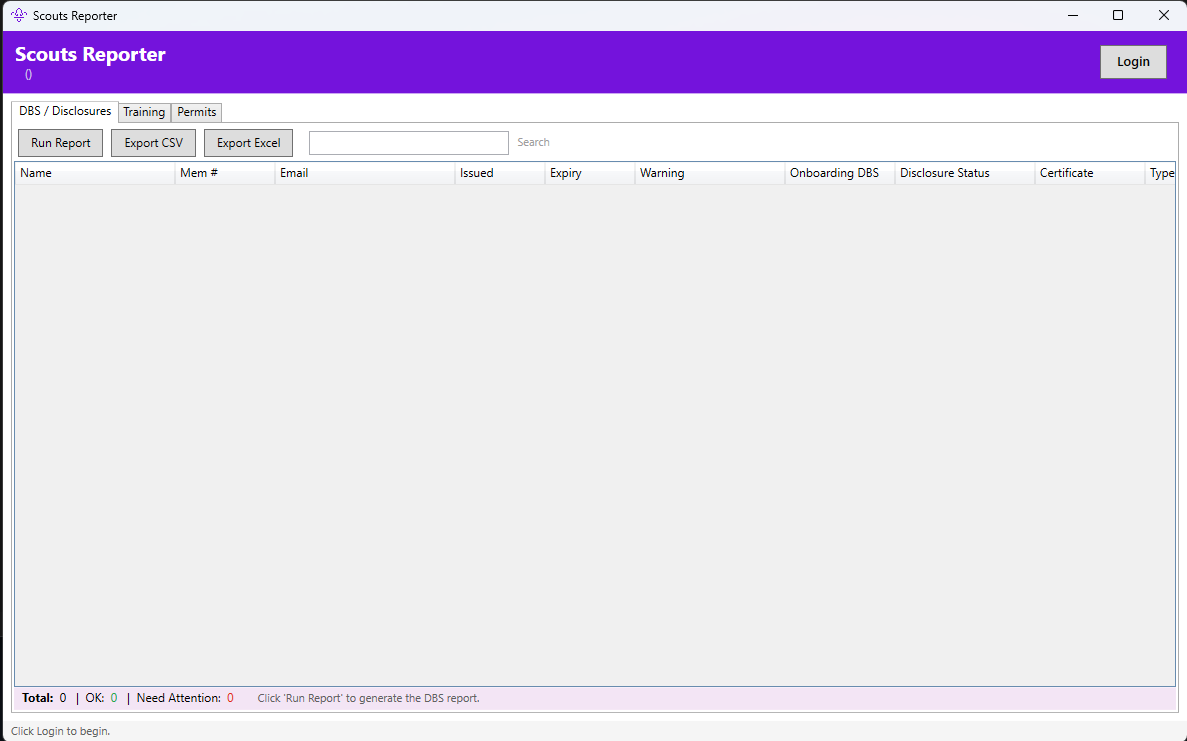
- Open the app. You will see the purple header bar with a Login button on the right.
- Click Login. A browser window will open showing the Scouts' login page.
- Enter your Scouts membership email and password as you normally would.
- Once you have logged in successfully, the browser window will close automatically, and the app will show your name and group in the header.
- Your login is remembered between sessions. The next time you open the app, it will try to log you in automatically. If that fails (for example, if it has been a long time), you will just need to click Login again.
Using the Dashboard
- Make sure you are logged in.
- Click the Dashboard tab (the first tab).
- Click Run Dashboard. The app will run the DBS and Training reports behind the scenes and then display the summary tiles.
- If you have multiple units, click the arrow on any unit card to expand it and see team-level breakdowns, flag summaries, and members who need attention.
Running a report
- Make sure you are logged in (your name should appear in the purple header bar).
- Click on the tab for the report you want: DBS / Disclosures, Training, or Permits.
- Click the Run Report button in the top-left of the tab.
- Wait for the report to finish. You will see progress messages at the bottom of the screen telling you what is happening. The first report takes the longest (typically 30 seconds to a couple of minutes, depending on how many volunteers you have) because it needs to fetch everyone's data. Subsequent reports are faster because member data is cached.
- You can also click Run All Reports in the header bar to run all three reports one after another.
Understanding the results
Each report displays a table of your volunteers. The key column to look at is the Flag column, which gives a quick status summary for each person.
DBS / Disclosures report columns:
- Name - the volunteer's display name
- Mem # - membership number
- Email - contact email address
- Issued / Expiry - when their DBS was issued and when it expires
- Warning - how long until expiry (e.g. "Expires in 3 months")
- Onboarding DBS - status of any in-progress DBS application
- Disclosure Status - current disclosure status from the membership system
- Certificate / Type / Authority - DBS certificate details
- Flag - overall status (OK, EXPIRED, EXPIRING SOON, ACTION NEEDED, etc.)
- Outstanding - any other outstanding onboarding actions
- Roles - all roles held by this person
Training report columns:
- Name - the volunteer's display name
- Total Trainings - number of completed training modules
- One column per training module showing the completion date
- Warning columns for First Response, Safeguarding and Safety showing time until expiry
- Flag - overall status
- Roles - all roles held
Permits report columns:
- Name - the volunteer's display name
- Total Permits - number of permits held
- Flag - overall status
- Roles - all roles held
- Click on a row to expand it and see the individual permit details (name, type, status, dates, restrictions)
Searching and filtering
Each report tab has a Search box in the toolbar. Type a name, role, flag status, or any other text to filter the table to matching rows. Clear the box to show all rows again.
The Permits report also has a "Hide members with no permits" checkbox to focus on just those who hold permits.
Exporting your data
Once a report has been generated, you can save it to a file:
- Export CSV - saves as a CSV file that can be opened in Excel, Google Sheets, or any spreadsheet application
- Export Excel - saves as a proper Excel (.xlsx) file with formatting
You can optionally password-protect exported files. When exporting, you will be prompted to set a password (or skip to export without one). Passwords must be at least 8 characters and include uppercase, lowercase and a number.
Click the button, choose where to save the file, and you're done. The default filename includes today's date and time, so you can keep a history of reports.
Selecting which units to include (multi-unit users)
If your Scout's role gives you access to more than one unit (for example, district or county commissioners), you will see a small down arrow next to the group name in the purple header bar.
- Click the down arrow to open the unit picker.
- Tick or untick the units you want to include in your reports.
- Use the All or None buttons to quickly select or deselect everything.
- The header will show how many units you have selected (e.g. "3 of 12 units selected").
- When you change your selection, any previously run reports are cleared and must be rerun with the new selection.
If you only have access to one unit, this feature is hidden, and everything works as normal.
Dark mode
Click Dark Mode in the bottom-right corner of the status bar to switch to a dark colour scheme. Click again (now labelled Light Mode) to switch back. Your preference is saved and remembered next time you open the app.
Cancelling a report
If a report is taking too long or you started it by mistake, click the Cancel button that appears while a report is running.
Logging out
Click the red Logout button in the header bar. This clears all data from the app and removes your saved login. You will need to log in again next time.
Automatic update notifications
When the app starts, it checks GitHub for new releases in the background. If a newer version is available, a banner will appear below the header bar with a link to download it. You can dismiss the banner, and it won't appear again for that version. When a newer version is released, the banner will return.
Was this article helpful?
That’s Great!
Thank you for your feedback
Sorry! We couldn't be helpful
Thank you for your feedback
Feedback sent
We appreciate your effort and will try to fix the article